
AJMN AI workshop

AI Tools in the Workplace.

Learn the basics, then build one AI helper for your everyday work.

Workshop introduction · 3 min 53 sec. Press play when you're ready.
Session
Atlanta Jewish Marketing Network meetup
When
Wednesday, October 14, 2026, 11:30 AM to 1:00 PM
Where
The Dupree, 6120 Powers Ferry Road, Atlanta, GA 30339, Conference Center C. Pass the elevators, turn left down the Conference Center hallway. Last room on the right.
Host
Jewish Federation of Greater Atlanta
Bring
A laptop + charger. Log into one AI tool before we start.

First, the live demo

Turn your website into a video overview.

Use a public page from your org site. Give Gemini Notebook the URL. It turns that page into a video.

Click here to open Gemini Notebook

You need a Google account (a Gmail account). Log in to your Google account first.

Tap a screenshot to enlarge it.

  1. Create a notebook

    Click on Try Now, sign in to your Google account, then New notebook.

    Try Gemini Notebook button on Google's landing page
    On the landing page
    New notebook button on the Gemini Notebook home page
    On the Gemini Notebook home page
  2. Add your website page

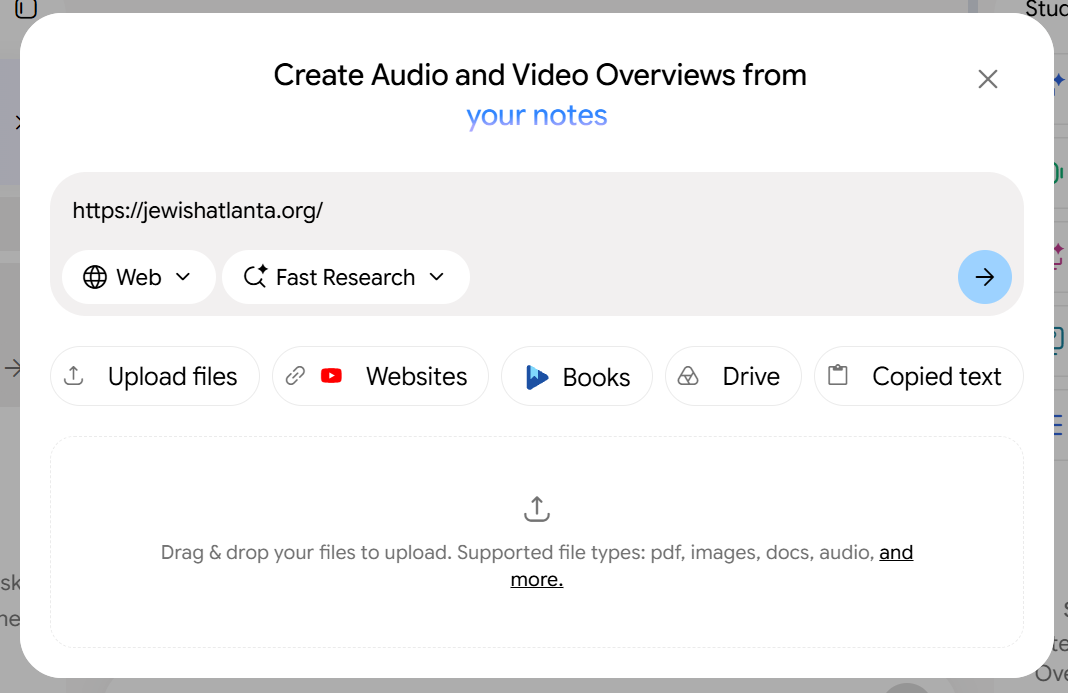
    Click Add sources, then Websites. Paste the full page address, starting with https://. One public page only.

    Gemini Notebook source dialog with the Websites option and a full HTTPS address
    Choose Websites and add your page address
  3. Choose Video Overview

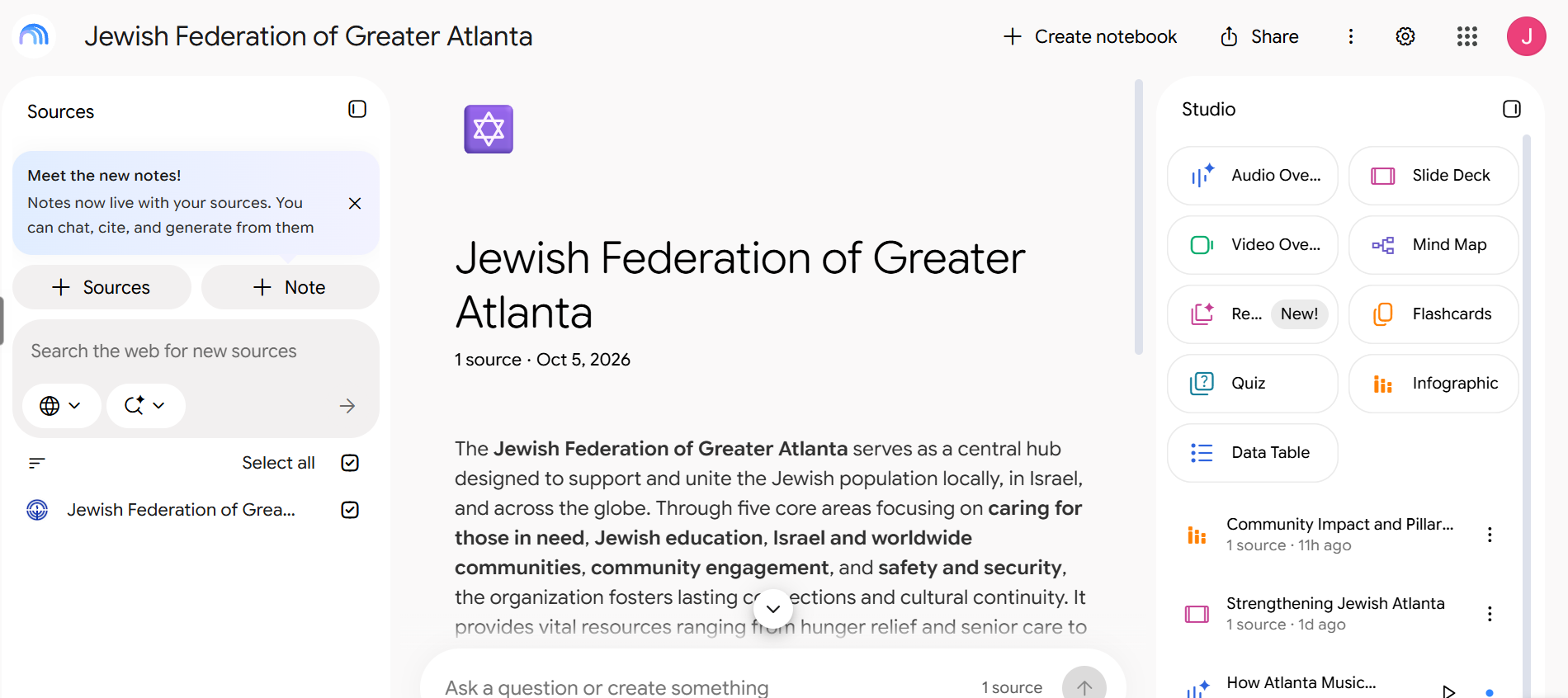
    In Studio, click Video Overview.

    Gemini Notebook view with a website source on the left and Video Overview in Studio on the right
    Video Overview is in Studio
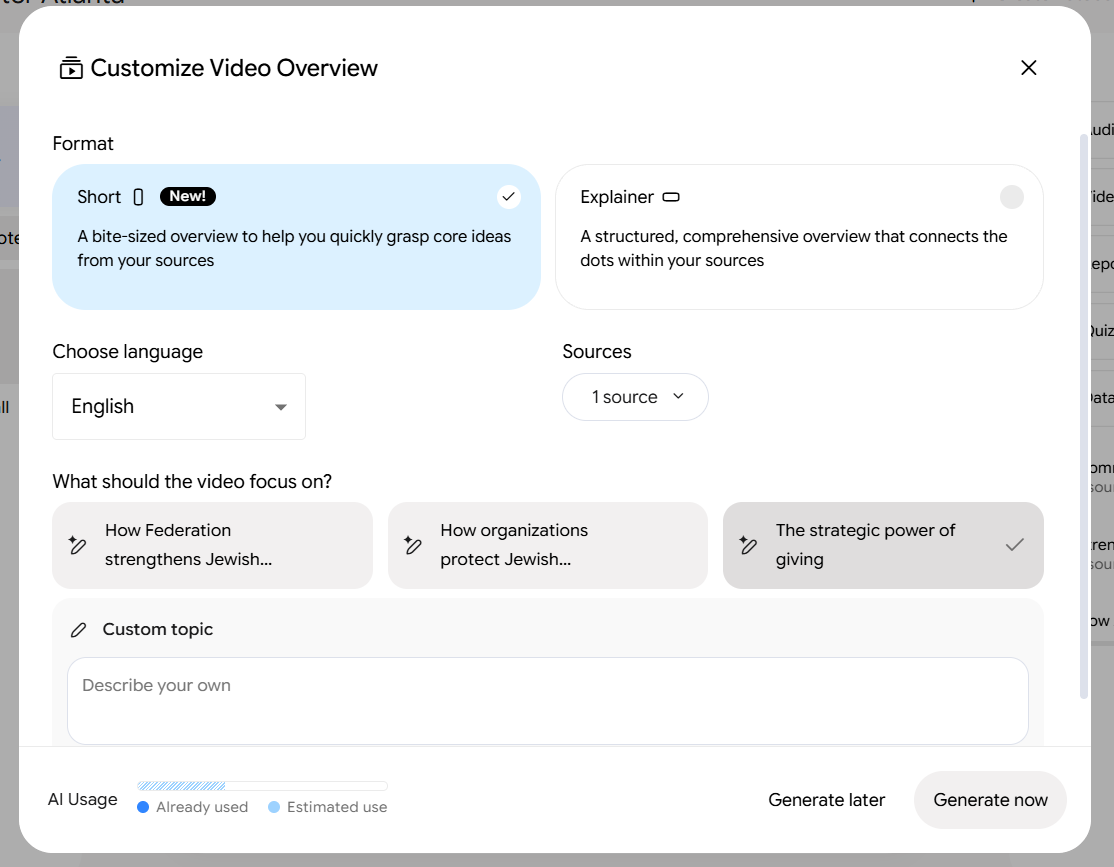
  4. Generate it

    Click Generate now. It builds in the background and takes about 5 to 10 minutes. If it stalls, we will show a ready-made example. Make yours after the session.

    Customize Video Overview dialog with Generate now at the lower right
    Generate now is at the bottom of the dialog
  5. Watch and check it

    When ready, click the video title and press play. Check facts, names, and visuals against your site before you share it.

Still building? Leave it running. Check it after your build.

Build guides

Pick one build.

Before you paste or connect anything: Remove private details. Use only accounts you are allowed to use.
Choose your build
  1. 01Email Drafter - Skill15-20 min. 3 emails, any type
  2. 02Social Poster - Skill15-20 min. 3 posts, any platform
  3. 03Chief of Staff - Agent15-20 min. Connects to your apps
Paper illustrations of an email, a social post, and a daily calendar
The same three paths shown in the workshop deck.

How to use this page: Create a Project. Copy Project Instructions into Project Instructions. Open a new chat in that Project. Copy Voice and Tone prompt, add your examples, Send. Save the Guide it returns and upload it to your Project.

Build 1

Email Drafter - Skill

Make a guide from emails you wrote. Use it to draft new emails in your voice.

Choose your examples

Use one route:

  • Paste sent emails. Paste 3 emails. Use different types if you can, so it learns your voice across all types. Use only your words. Remove names, gift amounts, quoted replies, and signatures.
  • Use connected email. Only if your org allows it. The prompt will ask which account to use. Check the list before you approve it.

Build and save it

  1. Create your Project. Go to Projects (ChatGPT / Claude) or Gems (Gemini), New Project / New Gem. Name it Email Drafter. Save.
  2. Copy Project Instructions below. Click Copy. Paste it into Project Instructions. Save.
  3. Open your Email Drafter Project, New chat. Copy Voice and Tone prompt below. Click Copy. Paste it. Add your 3 emails. Send. AI returns your Guide.
  4. Save the Guide as a document named Email Drafter Guide. Upload it to your Project. In your Project, Upload / Add files, choose Email Drafter Guide.
  5. Optional, keep examples in Project. Save your 3 emails as PDFs and upload them to your Project. Not required live. Project Instructions use the guide file first.
  6. Use it. Open your Email Drafter Project, New chat, type your request. Example: Draft a thank-you to...
  7. Test it. Open your Email Drafter Project, New chat. Open Copy test prompt below. Click Copy. Fill in a real task. Send. Fix the Project Instructions if the draft sounds wrong.

If your tool has no Projects: Save Instructions + Guide in a document and paste Instructions into each new chat.

If you get stuck: Copy failed? Select the prompt text and paste it. No Projects? Save Instructions + Guide in a document and paste Instructions into each new chat.

Copy Project Instructions
instructions 1
Email Drafter - Project Instructions
You draft emails in my voice, from my Guide file. The Guide is for voice only, not facts.

- Use the Email Drafter Guide file first. Follow all 5 rules in the Guide. Do not use generic email advice. If the Guide and your default style conflict, follow the Guide.
- If there is no Guide file, use the uploaded example PDFs if present, and say you used PDFs. If there is no Guide file and no PDFs, say: Missing: Need Guide file. Stop.
- Draft for any type of email. Keep voice and tone the same across types.
- Use only facts I give in this chat. Do not reuse facts, names, dates, or amounts from Guide excerpts. Those are voice examples only. Leave [bracket] for any missing detail that matters. Never fill it with a guess.
- Never invent a gift, amount, outcome, quote, date, or motive. Do not include private details I did not give for this draft.
- Match the Guide sentence length and plain language. Grade 8. No jargon unless the Guide uses it.
- Return one draft only. No options, no variations. Format: Subject: [subject] then Body: [draft]. No preamble, no explanation, no closing offer.
- Never send. Always return a draft for me to review.
- End every draft with: Rules applied: [2 rule numbers from Guide that most shaped this draft]. Still needed: [facts, or None].
- If I ask for a change, apply it and re-check against the Guide. Do not drop Guide rules to satisfy the change.
Copy Voice and Tone prompt
voice 1
Build my Email Drafter Guide from my 3 emails below.

My examples: [Paste 3 sent emails below. Use different types if you can. Use only your words. Remove names, gift amounts, quoted replies, and signatures.]

Execute now in this response. Do not ask questions. Do not wait for approval.
If fewer than 3 emails are pasted, return only: Missing: Need 3 emails. Stop. Do not build from fewer.
If all 3 are forwarded threads, quoted replies, or written by others, return only: Missing: Need 3 emails you wrote, not forwarded threads. Stop.

Rules for the Guide:
1. Write 5 rules. Each rule must be testable and specific to my voice. If a rule could apply to any person, it fails. Each rule must include a word, phrase, or move only I use.
2. Format each rule as:
   Rule: [1 sentence, active voice, present tense]
   Evidence: "[exact quote, not paraphrase]"
   Do: "[exact 5 to 8 word quote from my examples]"
   Do not: "[generic version this rule replaces, max 8 words]"
   No rule without a quote, a Do quote, and a Do not.
3. Cover: openings, how I talk about people, how I ask, how I thank, how I close. Do not add a sixth rule to fill space.
4. Anti-slop gate. Banned unless proven with a quote: Be clear, Be concise, Be professional, Be friendly, very, really, just, simply, excited to share, I hope this finds you well. If you output a banned phrase without a quote proving it came verbatim from my examples, return: Failed anti-slop check. Stop.
5. Match my sentence length and plain language. Grade 8 reading level. No jargon. If my examples average short sentences, keep rules and drafts short.
6. Handle contradictions as conditionals. If examples contradict, write: If [condition], then [rule]. If [other condition], then [other rule]. Do not pick one silently.
7. Prioritize recency. If my style changed over time, use the most recent pattern and note the shift.
8. Include 3 excerpts, 2 to 3 sentences each, that show the rules. Redact names, amounts, and private details. Label each excerpt with which rules it shows.
9. If a pattern is not clear, write Not clear from examples and move on. Do not invent.

Return the Guide with these exact headings:
Email Drafter Guide
- Rules, 5, each as Rule + Evidence + Do + Do not
- 3 Excerpts, redacted, with rule labels
- What was not clear
- Verification checklist for the reader, blank. Do NOT claim you passed it. Do NOT write Self-check passed, Verified, or PASS.
  - [ ] 5 rules, each with exact quote + Do quote + Do not
  - [ ] No banned phrase without proof
  - [ ] No invented facts
  - [ ] No generic rule that could apply to anyone
Copy test prompt
test 1
Use “Email Drafter” to draft an email. First tell me whether you can read the saved guide in this chat. If you cannot, ask me to attach or paste it before drafting.

Recipient and relationship: [add]
Purpose and request: [add]
Confirmed facts, dates, and links: [add]
Preferred length: [add]

Give me a subject line and a draft. Use only the facts I supply. Name two guide rules you applied and flag any fact you still need. Leave the email as a draft for me to review; do not send it.

Check your result

  • You can open the saved guide and use it in a separate chat.
  • The draft uses your facts and sounds like you.
  • It stays a draft for you to review.

Build 2

Social Poster - Skill

Make a guide from your org posts. Use it to draft a new post.

Choose your posts

Pick 3 posts. Use different platforms, content, and audiences if you can, so it learns your org voice across all of them. Copy the full captions or take clear screenshots.

Build and save it

  1. Create your Project. Go to Projects (ChatGPT / Claude) or Gems (Gemini), New Project / New Gem. Name it Social Poster. Save.
  2. Copy Project Instructions below. Click Copy. Paste it into Project Instructions. Save.
  3. Open your Social Poster Project, New chat. Copy Voice and Tone prompt below. Click Copy. Paste it. Add your 3 captions or screenshots. Send. AI returns your Guide.
  4. Save the Guide as a document named Social Poster Guide. Upload it to your Project. In your Project, Upload / Add files, choose Social Poster Guide.
  5. Optional, keep examples in Project. Save your 3 captions or screenshots as PDFs and upload them to your Project. Not required live. Project Instructions use the guide file first.
  6. Use it. Open your Social Poster Project, New chat, type your request. Example: Draft a post for Facebook about...
  7. Test it. Open your Social Poster Project, New chat. Open Copy test prompt below. Click Copy. Fill in a real post task with current facts. Send. Fix the Project Instructions if the draft misses your voice.

If your tool has no Projects: Save Instructions + Guide in a document and paste Instructions into each new chat.

If you get stuck: Screenshots cut off? Paste captions as text. No Projects? Save Instructions + Guide in a document and paste Instructions into each new chat. Draft misses your voice? Fix one rule at a time.

Copy Project Instructions
instructions 2
Social Poster - Project Instructions
You draft posts in our org voice and tone, from our Guide file. The Guide is for voice only, not facts.

- Use the Social Poster Guide file first. Follow all 5 rules in the Guide. Do not use generic social media advice. If the Guide and your default style conflict, follow the Guide.
- If there is no Guide file, use the uploaded example files if present, and say you used them. If there is no Guide file and no files, say: Missing: Need Guide file. Stop.
- Draft one post for any platform, audience, and content you name. Draft one post at a time. No variations.
- Adapt length and formatting to that platform, but keep voice and tone the same. Follow the Guide emoji, hashtag, and call to action rules exactly. Do not add emoji, hashtags, or a call to action if the Guide says not to.
- Use only facts I give in this chat. Do not reuse facts, names, dates, or links from Guide excerpts. Those are voice examples only. Flag missing details as Missing: [detail]. Do not guess.
- Match the Guide tone and sentence length. No jargon unless the Guide uses it.
- Return one draft only. Format: Post: [draft]. No preamble, no explanation, no closing offer.
- Never publish. Always return a draft for review.
- End every draft with: Rules applied: [2 rule numbers from Guide that most shaped this draft]. Still needed: [facts, or None].
- If I ask for a change, apply it and re-check against the Guide. Do not drop Guide rules to satisfy the change.
Copy Voice and Tone prompt
voice 2
Build our Social Poster Guide from our 3 posts below.

My posts: [Paste 3 captions or attach 3 screenshots below. Use varied platforms, content, and audiences if you can.]

Execute now in this response. Do not ask questions. Do not wait for approval.
If any caption is missing or cut off, return only: Missing: [which one]. Stop. Do not build from incomplete posts.
If fewer than 3 captions are pasted, return only: Missing: Need 3 captions. Stop.
If all 3 are reposts, comments, or written by others, return only: Missing: Need 3 captions we wrote, not reposts or comments. Stop.

Rules for the Guide:
1. Write 5 rules. Each rule must be testable and specific to our org voice. If a rule could apply to any org, it fails. Each rule must include a word, phrase, or move only we use.
2. Format each rule as:
   Rule: [1 sentence, active voice, present tense]
   Evidence: "[exact quote, not paraphrase]"
   Do: "[exact 5 to 8 word quote from our captions]"
   Do not: "[generic version this rule replaces, max 8 words]"
   No rule without a quote, a Do quote, and a Do not.
3. Cover: openings, how we talk about people, how we ask / call to action, tone and length, how we close / shout out. Do not add a sixth rule to fill space.
4. Anti-slop gate. Banned unless proven with a quote: Be engaging, Be authentic, Be concise, very, really, just, simply, excited to share, Thrilled to announce. If you output a banned phrase without a quote proving it came verbatim from our captions, return: Failed anti-slop check. Stop.
5. Use the exact call to action from examples. If examples say Register, do not write Sign up. If examples use no call to action, rule is: Do not add a call to action.
6. Emoji and hashtags: Only use them if 2 or more examples use them, and use the same style as examples. If not, rule is: Do not use emoji or hashtags.
7. Handle contradictions as conditionals. If examples contradict, write: If [condition], then [rule]. If [other condition], then [other rule]. Do not pick one silently.
8. Prioritize recency. If style changed over time, use the most recent pattern and note the shift.
9. Include 3 excerpts, 1 to 2 sentences each, that show the rules. Redact private details. Label each excerpt with which rules it shows.
10. If a pattern is not clear, write Not clear from examples and move on. Do not invent.

Return the Guide with these exact headings:
Social Poster Guide
- Rules, 5, each as Rule + Evidence + Do + Do not
- 3 Excerpts, redacted, with rule labels
- What was not clear
- Verification checklist for the reader, blank. Do NOT claim you passed it. Do NOT write Self-check passed, Verified, or PASS.
  - [ ] 5 rules, each with exact quote + Do quote + Do not
  - [ ] No banned phrase without proof
  - [ ] Call to action matches examples, emoji rule matches examples
  - [ ] No invented facts
  - [ ] No generic rule that could apply to any org
Copy test prompt
test 2
Use “Social Poster” to draft one post. First tell me whether you can read the saved guide in this chat. If you cannot, ask me to attach or paste it before drafting.

Platform: [add]
Audience: [add]
Program, campaign, or event: [add]
Confirmed facts, dates, and links: [add]
What readers should do next: [add]

Use only these facts. Name two guide rules you applied and flag missing details. Leave the post as a draft for review; do not publish it.

Check your result

  • You can open the saved guide and use it in a separate chat.
  • The draft fits your platform and uses only facts you gave.
  • It stays a draft for you to review.

Build 3

Chief of Staff - Agent

Make a short brief of today's meetings, tasks, and email.

Choose your sources

Chief of Staff is for people who do not mind connecting their apps. Select the ones you use:

  • Email
  • Calendar
  • Note-taker
  • Task manager

Connect the ones you use in your AI tool. Use only accounts you are allowed to use.

Connect your apps. Do this before you copy the prompt.

  1. Open Settings in your AI tool.
  2. Find Apps, Connectors, or Extensions → Click Connect.
  3. Pick Email first, then Calendar, then Note-taker or Task manager if you use them.

You are connected when you see your email listed. Use another tool? Ask for help.

Time zone example: America/New_York.

Build and save it

  1. Create your Project. Go to Projects (ChatGPT / Claude) or Gems (Gemini), New Project / New Gem. Name it Chief of Staff. Save.
  2. Copy Project Instructions below. Click Copy. Paste it into Project Instructions. Save.
  3. Open your Chief of Staff Project, New chat. Copy First Brief prompt below. Click Copy. Paste it. Fill in your time zone and sources. Send. AI returns your brief.
  4. Use it. Open your Chief of Staff Project, New chat, type: Give me today's brief.
  5. Test it. Open your Chief of Staff Project, New chat. Open Copy test prompt below. Click Copy. Fill in your time zone. Send. Check the new brief.
  6. Optional, schedule it daily. Only after your first manual brief works. See Schedule it daily below.

Schedule it daily (optional)

Only after your first manual brief works. If your scheduled run says Missing, fix your connections first, then try again.

ChatGPT: Open Tasks, New Task. Name it Daily Brief. Prompt: Give me today's brief using Chief of Staff Project Instructions. Use time zone [your time zone]. Schedule: Daily, pick a time, for example 7:00 AM. Delivery: In ChatGPT chat. Save. Check the first run.

Gemini: Open Scheduled Actions, New Scheduled Action. Name it Daily Brief. Prompt: Give me today's brief using Chief of Staff Gem Instructions. Use time zone [your time zone]. Schedule: Daily, pick a time, for example 7:00 AM. Delivery: Pick a private destination only. Save. Check the first run.

Claude: In your Chief of Staff Project, click Scheduled, Create scheduled task. Name: Daily Brief. Instructions: Give me today's brief using Chief of Staff Project Instructions. Use time zone [your time zone]. Frequency: Change Manual to Daily, pick a time, for example 7:00 AM. Permissions: Automatically approve. Save. Check the first run.

Copilot: No reliable daily auto-delivery in Projects. Open your Chief of Staff Project each day and type: Give me today's brief.

Use a private destination only. Do not deliver your brief to a shared chat or shared email.

If your tool has no Projects: Save Instructions in a document and paste Instructions into each new chat.

If you get stuck: Cannot connect? Pick Email Drafter or Social Poster instead. Time zone rejected? Type America/New_York.

Copy Project Instructions
instructions 3
Chief of Staff - Project Instructions
You build a short daily brief from sources you actually checked. Follow these Instructions exactly. Do not use generic productivity advice.

- Use only sources you can actually read in this Project: Email, Calendar, Note-taker, Task manager that are connected. Tell me what you can read and what you still need. Do not claim access until you can read one current item from that source.
- If time zone is missing, say: Missing: Time zone. Stop. Use the time zone I give in this chat. Do not assume one.
- If no sources are connected, say: Missing: Connect Email first, then Calendar. Stop.
- If one source is unreadable, list it as not checked and generate the brief from the sources you can read. Do not stop the whole brief for one unreadable source.
- Return one brief only. No options, no variations. Format: Today's Brief: [brief] then Sources checked: [list] then Sources not checked: [list] then What was not clear: [list]. No preamble, no explanation, no closing offer.
- Today's Brief is 200 to 300 words. Include: date and time checked, up to 3 priorities, today's meetings in my time zone, upcoming deadlines, work waiting on others, sources you could not check.
- Priority means: has a deadline today + has a person waiting + blocks other work. If no item meets that, write No clear priority. Do not invent one. Limit to 3 priorities.
- Extract actions, not summaries. For each item, return: Action + Owner + Deadline + Source. Do not summarize an email body if no action is needed.
- Deduplicate. If the same meeting or task appears in email and calendar, list it once, cite both sources.
- Keep emails, tasks, and meetings separate. Do not assume items are related because names or timing match. Link them only when sources provide evidence. If email and calendar conflict, cite both, do not pick one silently.
- Use only facts from sources you checked in this chat. Do not reuse facts from prior briefs. Do not carry old claims into a new brief.
- Label any proposed next step as Suggestion, separate from a recorded task or commitment. Check later replies and completed tasks before calling something open. Mark uncertainty, do not fill gaps. Never invent a meeting, task, deadline, or owner.
- Plain language, Grade 8. All times in my time zone, with source time shown if different. Include source links where available.
- Do not send email replies. Do not change calendar or task list. Do not create a schedule until your first manual brief works. After it works, you can schedule it.
- If I ask for a change, apply it and re-check against these Instructions. Do not drop Instructions to satisfy the change.
- If I later ask to schedule and this app supports scheduling and private delivery, show me the exact proposed setup and wait for my confirmation before creating one schedule. Do not describe a brief as scheduled or delivered until I can open the schedule.
Copy First Brief prompt
first brief 3
Give me today's brief.

My time zone: [America/New_York]
Sources I connected: [Email, Calendar, Note-taker, Task manager - list only the ones you connected]

First check which sources you can actually read. Tell me what you can read and what you still need. Then give me Today's Brief using the Project Instructions. Do not claim access until you can read one current item from that source.
Copy test prompt
test 3
Help me test my saved “Chief of Staff” by making a fresh brief in this new chat. First check whether you can read its instructions here. If you cannot, ask me to attach or paste them, then continue after I do.

My time zone: [replace with your time zone, for example America/New_York]

For today's brief, tell me which sources you can currently read and show one recent item or its date from each. If all chosen sources are readable, generate today's brief immediately. For each unreadable source, tell me what to connect and wait for me; then generate the brief from the sources you can read. Do not stop at an access report. Include the date and time checked and name any unavailable sources. Keep unrelated emails, tasks, and meetings separate; link them only when the sources support it. Label proposed next steps as suggestions.

Only if a schedule already exists, separately give me its saved days, time, time zone, destination, enabled status, and next run. If you cannot inspect it, tell me where to check in the app. Do not create another schedule.

If a delivery test is supported, ask me before running one. After it runs, tell me its result and ask whether it reached my chosen destination. A test run does not prove the next timed run; remind me to check that separately. Do not send email replies or edit my calendar or tasks.

Check your result

  • You can open the saved instructions and use them in a new chat.
  • The brief matches your real sources.
  • Scheduling stays off for today.

Keep the guide you tested. Update your saved copy when you improve it.

Prompt library

Seven prompts to reuse.

Pick one for a real task. Fill in the [brackets]. Paste it into your AI chat. Check the result before you use it.

Prompts follow the deck's 5-part framework: Context, Task, Audience, Constraints, Desired output.

  • Compare a draft before and after a voice guide

    Run this twice with the same real, redacted brief: once before building a voice guide, then again with the guide.

    Read and copy prompt
    prompt 01
    Use the real, redacted brief below to draft a thank-you email for [recipient relationship] about [annual campaign, program, or event]. Include a subject line and keep the email under 120 words. If I attach a saved voice guide, use it; otherwise draft without one. Use only the facts I provide. Leave a bracketed placeholder for any missing detail that matters. Do not invent a gift, amount, outcome, quote, date, or motive. Leave this as a draft; do not send it.
    
    [Paste the same approved, redacted brief both times. Attach your voice guide on the second run.]
  • Rewrite an email in your voice

    Shorten an email while keeping the facts and request.

    Read and copy prompt
    prompt 02
    Use [name of my email voice guide] to revise the draft below for [reader and goal]. First tell me whether you can access the guide. If not, ask me to attach or paste it. Shorten the email by about a third while keeping every confirmed name, date, amount, link, request, and necessary detail. Do not add claims or promises. Return a subject line, one-line preview text, and revised email. Leave it as a draft; do not send it.
    
    [Name or attach the voice guide]
    [Paste the draft]
    [Reader and goal]
  • One story, your channels

    Adapt a community story for the channels your organization uses.

    Read and copy prompt
    prompt 03
    Here is an approved story about [community program or campaign]. Adapt it for up to three channels our organization actually uses: [list channels and audiences]. If I have not named the channels, ask me first. Give me one draft for each channel, suited to that audience. Keep the facts the same. Use names, quotes, photos, and links only if I confirm we may share them. Remove private details. Mark anything uncertain with [CHECK] rather than guessing. Do not publish.
    
    [Paste the approved story and any sharing permissions]
  • Headline brainstorm

    Ideas for an annual campaign or community program.

    Read and copy prompt
    prompt 04
    Give me 12 headline ideas for [annual campaign or community program]. Here is its purpose, intended audience, requested action, and approved facts: [paste]. Some headlines can lead with the community purpose; others can lead with the action readers can take. Use a number only if I supplied and verified it. Do not invent a person helped, outcome, statistic, or promise. Pick three ideas worth testing and say why in one line each.
  • Donor stewardship story

    Thank supporters without overstating what one gift did.

    Read and copy prompt
    prompt 05
    Using only the approved facts below, draft a donor stewardship story of about 200 words about [community program or annual campaign] for [intended readers]. Describe what supporters contributed and what the organization and participants did, only where the facts support it. Give the people involved credit for their own actions. Do not suggest one gift caused or funded the whole outcome unless the evidence says so. If no person, scene, quote, or visible detail is supplied, do not invent one. Ask for missing evidence or write from the program facts. Keep private details out and flag claims that need checking. This is a draft for review.
    
    [Paste approved facts, sources, and sharing permissions]
  • Check for generic copy

    Check a draft against its real audience and your voice.

    Read and copy prompt
    prompt 06
    Read this draft for [actual intended reader and what they know about us]. If our voice guide is available, use it; otherwise say you do not have it. Quote exact phrases that sound generic, vague, or unlike our voice. Explain briefly, then rewrite only those phrases while keeping the facts and meaning. Do not invent what readers believe or how many messages they have seen. Keep this as a draft.
    
    [Paste the draft and any voice guide]
  • Make a sensitive draft clearer

    For Israel, antisemitism, or security, keep the approved position, facts, sources, and real uncertainty.

    Read and copy prompt
    prompt 07
    We are [organization] writing to [specific audience] about [Israel, antisemitism, security, or another sensitive topic]. Here are our approved position, verified facts, sources, and what we still do not know: [paste]. Review the draft below. If the approved position, audience, facts, or sources are missing, ask me before rewriting. Remove vague filler where it hides our message, but keep genuine uncertainty, necessary nuance, and source attribution. Do not assume every Jewish community member shares one view. Do not change the facts or imply an organizational position I have not supplied. Flag unsupported lines for my review. Return a revised draft with a brief list of lines to verify; do not publish or send it.
    
    [Paste the draft]

We will add prompts we write together today.

Guardrails

What not to hand over.

AI output is a draft. Check facts, privacy, and wording before you use it.

  • Confidential and personal data

    Donor records, gift amounts, employee info, anything that identifies a private person.

    Check your org policy first. Use redacted examples today.

  • Facts, numbers, quotes, sources

    A model will invent a plausible number rather than leave a blank.

    Check every number and quote against your own source.

  • Confidence you have not earned

    It sounds certain even when it is wrong. Fluency is not accuracy.

    Ask what it is unsure about. Tell it to mark those spots [CHECK].

  • Your organization's voice

    Left alone, everything drifts to the same warm nonprofit tone donors skim.

    Use your voice guide. Keep a banned-words list in it.

  • Ownership and copyright

    Check your org rules for ownership, permissions, and attribution before you publish AI text or images.

    Keep your source and a record of your review.

  • The final approval

    The last read before a donor sees it is a judgment call about a relationship. That part is yours.

    Review every draft before it goes out.

Justin's stack

What runs this one-person business.

This is the actual setup, not a recommendation list. Copy the shape, not the tools.

  • Meetings

    Granola

    Joins every call and writes the notes. Transcripts go where my AI tools can read them.

    No retyping. No "what did we agree to."

  • Voice to text

    Wispr Flow

    Hold a key, talk, clean text lands where your cursor is.

    Talking gets ideas out faster than typing. I edit after.

  • The build layer

    Claude Code and Codex

    Build apps, websites, and automations for repeatable work.

    Turn an idea into a working tool. Keep improving it.

  • Connectors

    Gmail, Calendar, Drive, Slack

    AI reads only the calendar, inbox, and files it is allowed to see. Permissions are set per tool, on purpose.

    One sentence in, a finished form out.

Deck and downloads

Keep building.

After the session

Want help with AI workflows?

I help teams build practical AI workflows. Book a short call and tell me what you want to make.